Pick the shot before you take it.
The whole screen, a dragged region or a single window. Start one from the board, the tray or a hotkey, and it behaves the same way every time.
Windows today. Want it on macOS? Get on the list.
Capture
Drag a box.
That’s the tutorial.
Try it on the right. The whole screen means your primary display, edge to edge. A window means that window, not the rectangle it sits in. A region is a box you drag, across every display, with Esc to back out and a drag under four pixels read as a click.
- Drag across every display
- 3s, 5s or 10s delay
- Six global hotkeys
Drag to select a region · Esc to cancel
Region: 880 × 600 pixels of a 1920 × 1080 display.
Drag on the picture. With it focused, arrow keys move the selection, shift with an arrow key resizes it, and Esc cancels.
This is the overlay running in the page. The scrim, the four pixel rule and Esc behave as the app does; the size readout and the moving dashes are drawn for this demo, and the app’s own overlay prints no dimensions. In the app it covers your whole desktop rather than a box on a page. Nothing here is captured, saved or sent anywhere.
Take the shot you actually need
The whole screen, a dragged region or a single window. Pick before you shoot, and skip the cropping afterwards.
Whole screen
One display, edge to edge. The shot to take when you know something is wrong but not which part.
A dragged region
Drag a box over anything on screen. Escape backs out, and a stray click stays a click, so you never get handed an empty picture.
A single window
Pick from a list of what is open, each row naming the window and the app it belongs to. You get that window, not the rectangle it sits in.
Start it from wherever your hands are
Start a capture from the three buttons on the board, from the tray menu, or from a global hotkey while another app has focus. All three take the same shot and land it in the same place.
The hotkey you press mid-test does the same thing as the button you click. One behaviour to learn, and it holds everywhere.
Catch the menu that vanishes when you click away
The board carries a delay: none, three, five or ten seconds. Press the button, open the menu you need, and let the countdown do the waiting.
The tray and the global hotkeys always shoot instantly, by design. A hotkey that silently waits reads as a failed hotkey, so those two paths never take the delay.
Copy it, and the board still has it
One setting decides what happens the moment a shot lands. It applies to the buttons, the tray and the hotkeys alike.
- Open the editor
- The default. The editor opens on the shot straight away, which is the mode to leave on if most of your captures get an arrow or a redaction first.
- Save straight to the folder
- Straight into your capture folder, no questions asked. Turn it off and saving asks where, with a normal Save As, so every file lands where you chose.
- Copy to the clipboard
- Paste it into the next ticket, chat window or reply to a customer. The board composer keeps the same shot, so the next thing you copy cannot cost you this one.
Already have the picture? Drop it in.
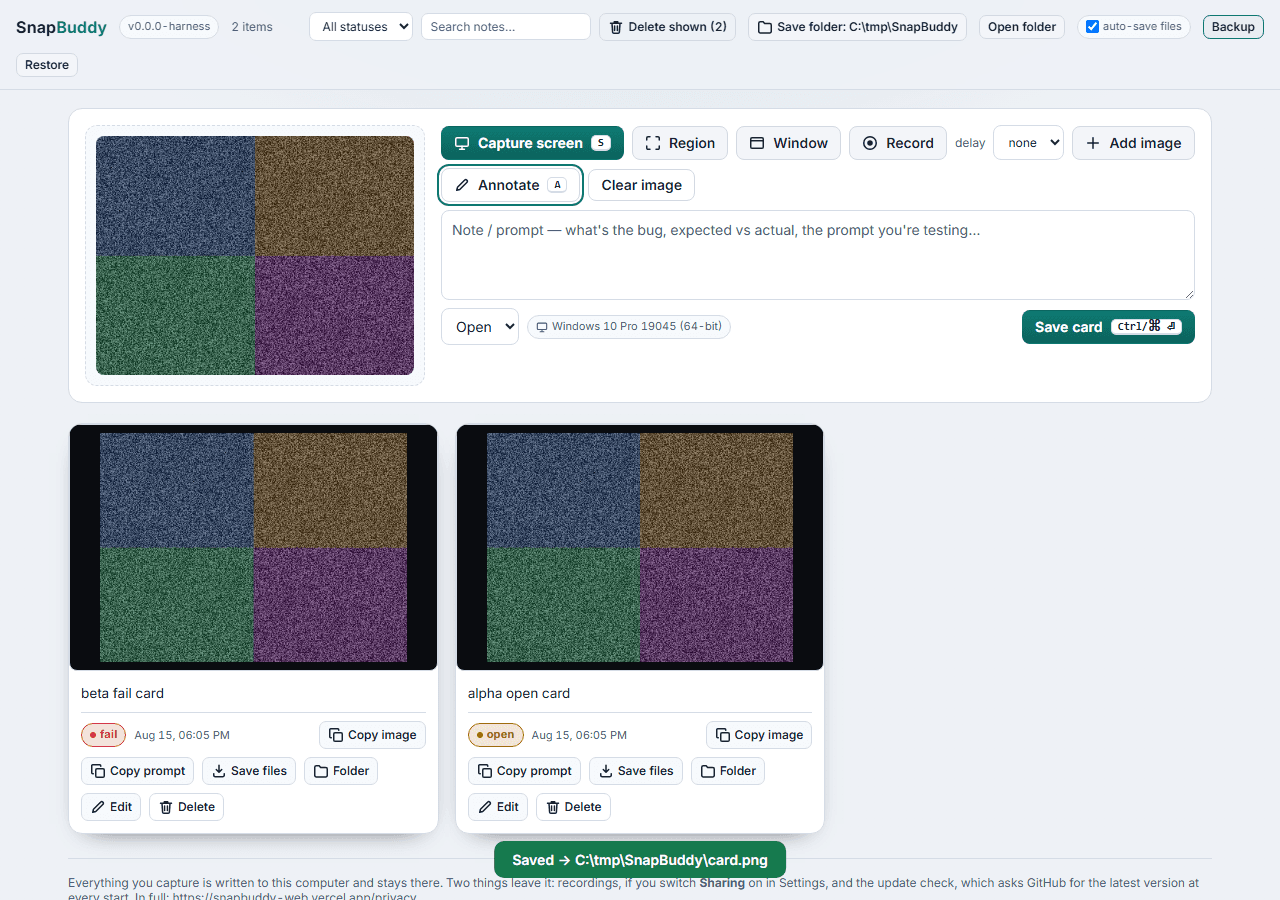
Paste with Ctrl+V, drag a file onto the drop zone, or press Add image and pick one off the disk. From there it behaves like any other capture: annotate it, note it, save the card.
Add image opens a picker on your own disk. It uploads nothing, which is why it isn’t called Upload any more.
In the board, S takes a capture and A opens the editor on a staged image, and both stand down while you are typing. Ctrl+Enter saves the card from the note field.
Six hotkeys that work from any app
Rebind any of them in Settings: press the combination you want instead of typing it out.
- Capture screen
- Ctrl+Shift+S
- Capture region
- Alt+Shift+R
- Capture window
- Alt+Shift+W
- Start or stop recording
- Alt+Shift+E
- Pause or resume
- Alt+Shift+P
- Copy the last card
- Alt+Shift+C
Every shortcut needs a modifier. A bare key would go missing from every other app on the machine for as long as SnapBuddy is running.
If another app already owns a combination, the app moves down its own list for that action and tells you which one it used, naming both. Every action has its own list, so two of them never land on the same key.
Escape backs out of a region selection, and during a recording it does nothing at all. Discard destroys a take with no confirmation and no recycle bin, so a reflex keypress is not allowed anywhere near it.
Every saved card lands in the folder you choose
The picture on its own by default, or the markdown to paste beside it and the capture data too when you ask for them. QA teams file them; support teams send them to customers.
The installer comes from the same releases repo the app checks for updates.
Windows today. Want it on macOS? Get on the list.